Users along with IT Admins started working from home forcing administrators to change the way they manage their organization’s devices.

Group Policy analytics is a tool in Microsoft Intune that:
- Analyses your on-premises GPOs.
- Shows the settings that are supported by cloud-based MDM providers, including Microsoft Intune.
- Shows any deprecated settings, or settings not available.
- Can migrate your imported GPOs to a settings catalog policy that can be deployed to your devices.
Some older settings aren’t supported, or don’t apply to cloud native Windows devices. After you analyze your GPOs, you’ll know which settings might still be valid.
Mobile Device Management solution has an edge over Group policies from On-Prem. Following table can provide more information to it.
| Group Policy | Mobile Device Management |
| Changes require connectivity to your corporate network or VPN | Changes can be updated over the Internet |
| High impact on boot-time and performance | Lightweight policy management |
| Configuration drift is common and hard to predict | Configuration issues and conflicts are detected |
| Assumed results and enforcement | Reporting and monitoring from the MEM Admin Center |
If we need to frame it, below points can be considered.
1. Discover
2. Assess
3. Migrate
Discover
- Discussion with internal teams managing policies for device management. Include device management, security, business, and other stakeholder teams.
- Gather all the policies in environment.
- Also, don’t forget to list down policies from Security Solutions, Firewall, Data Loss Prevention, Network Access and Proxy and Other management tools.
Assess
- Identify policy usage and targets.
> Determine what the policy configures and the users or devices it targets.
> Categorize policies by type or purpose:
>>Security and Compliance
>>Device, Operating System, or App Configuration
>>Defaults and Preferences - Identify policy ownership.
> Assign ownership of the policy and its objective - Identify policy lifecycle.
> Document the process for maintaining and measuring success of the policy.
With Modern Management, where most the solutions are taking advantage of cloud world, we may want to re-think on existing solutions. Group Policy Object is one such configuration with thousands of settings available in it. Looking for new Modern Management scenarios, lots of settings does not fit well and may need a new solution to explore.
While designing the new solution following things are considered.
- User Centric
- Open to Internet World
- Always available and Update to date
- Ease of Deployment and Manage
- Proactive Insights
- Intelligent security Built-in
When we think of Group Policies, they should also be aligned with points mentioned above.
It is not necessary to deploy every single setting from Intune. However, at the end, device should be secure enough keeping security compliance of any organization in mind.
We can follow the flowchart mentioned below to align the existing GPO model with new solutions available.
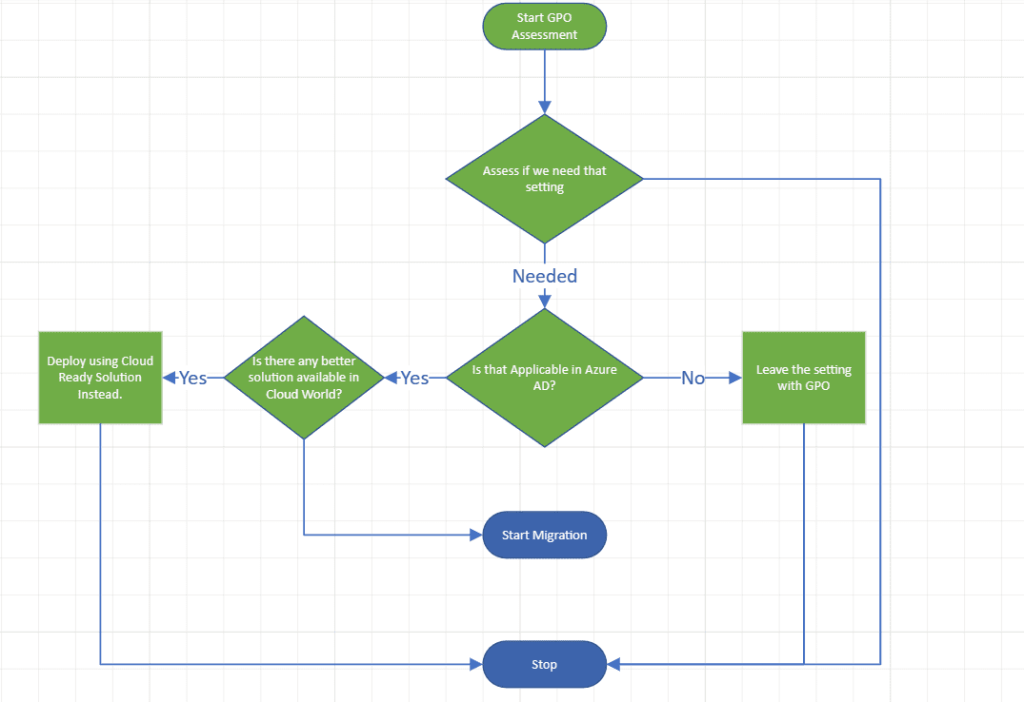
During the assessment process, we should ask following questions to ourself:
- Do we need that GPO setting?
- If yes, is there any new cloud ready solution available to fulfil that requirement?
If there is a new cloud ready solution available, we it’s better to explore that option instead. New cloud ready solution is build keeping new operational challenges in mind. Existing GPO based solution may not fit for current requirement.
For example: earlier we were using Folder Redirection. In cloud world, there is a better option called OneDrive for Business which is not only capable of giving same look and feel in terms of known folder data but also, it handles data, permission and sharing in better and secure way. Keeping in mind that data is on open internet, regular NTFS permissions may not be enough. One Drive for Business can help in data loss prevention. On top of it, it is one of those easiest things to configure.
Another example can be, WSUS Server location. With client machines already on internet, there is no point we are updating client machines with WSUS intranet server location. Better option is to use Windows update for Business which can be configured using Intune with few clicks.
Migrate
Fresh policies are recommended to start from Intune directly. However, when we talk about migrating existing policies, a decision-making flow chart is needed. Below is one such flow chart to refer.
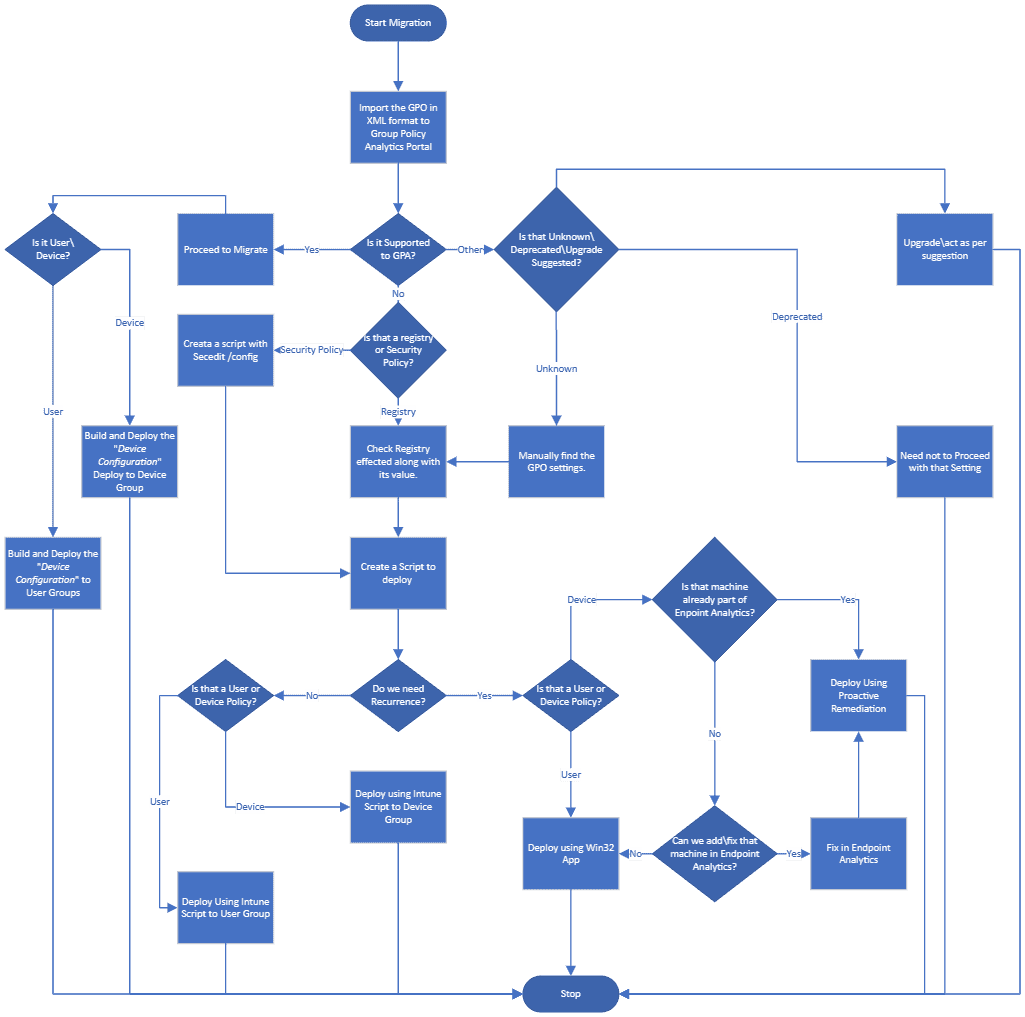
Once we confirm that we are going with existing GPO by migrating to Intune, we need to make use of group policy analytics from Intune Portal.
We can further talk about following points on how to achieve following line items.
- Using PowerShell Script to change Registry.
- Using Endpoint Analytics > Proactive Remediation Script
- Using Win32 Apps
Hope this helps.

 Binlabs
Leave a comment