There are several organizations with “networking & security teams” owned by Manager A and “Device Management” is managed by Manager B. If Manager A and Manager B are good friends and do regular follow-ups over Tea, device security and compliance work well.
And if they don’t like tea (or…), you can imagine the situation 😐
Front Desk people will be irritated because Intune is deploying applications (or any other policies) at one location. However, the same thing is failing at another location.
And networking team is saying “nothing is wrong from their side”.
Is this your story?
Then continue reading…
In such cases you need to look for some evidence to check if this is really a network issue by using following steps:
Step#1: Get a list of URLs used by Intune.
Well, that’s simple. Use the link mentioned below and you will get the list. Basically, it is a PowerShell query.
Network endpoints for Microsoft Intune | Microsoft Learn
Specially, following section to get IPs used:
(invoke-restmethod -Uri ("https://endpoints.office.com/endpoints/WorldWide?ServiceAreas=MEM`&clientrequestid=" + ([GUID]::NewGuid()).Guid)) | ?{$_.ServiceArea -eq "MEM" -and $_.ips} | select -unique -ExpandProperty ipsAnd following section to get URLs
(invoke-restmethod -Uri ("https://endpoints.office.com/endpoints/WorldWide?ServiceAreas=MEM`&clientrequestid=" + ([GUID]::NewGuid()).Guid)) | ?{$_.ServiceArea -eq "MEM" -and $_.urls} | select -unique -ExpandProperty urlsStep#2: Check if anyone of these locations is blocked
Heard of Netmon? Or WireShark? I will use Netmon for demo purpose. You can get it from link below.
Download Microsoft Network Monitor 3.4 (archive) from Official Microsoft Download Center
Get this installed and then Launch as Admin so that NIC can be accessed. Of course on same machine where you are facing Intune related issue.
Run the URLs PowerShell command mentioned above.
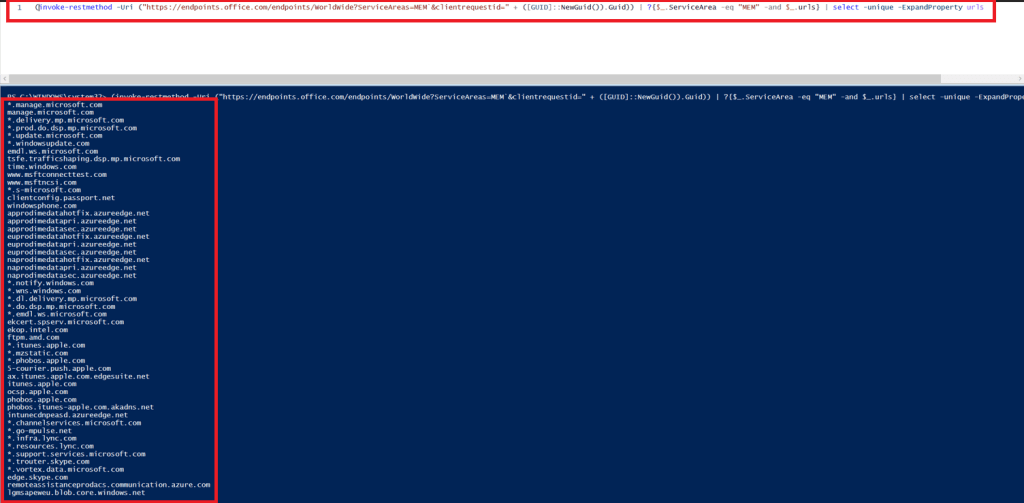
Copy the result and paste them in EXCEL Sheet.
Something like this.
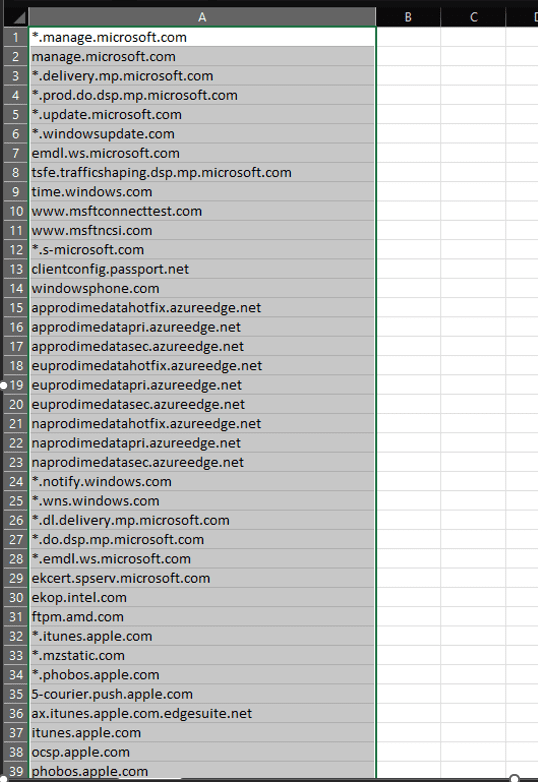
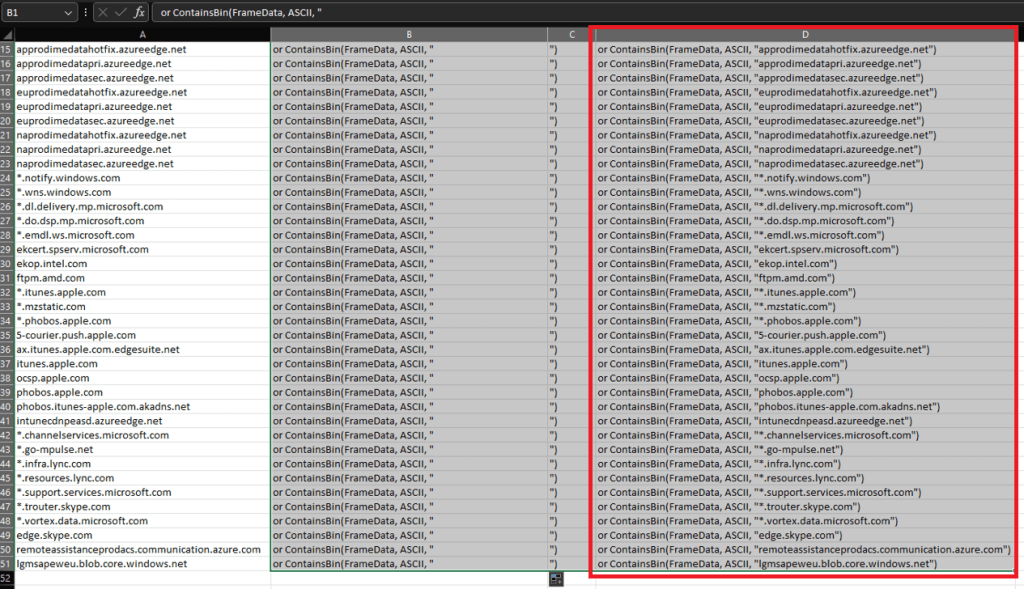
On Shell B1, type following
OR ContainsBin(FrameData, ASCII, “
On Shell C1, type following
“)
Now, on D1, use following command to add them together
=CONCAT(B1, A1,C1)
Result should look like this

Now, all you need to do is select B1, C1 and D1. Drag using bottom right corner of D1 when you get + symbol. You should get something like this.
Remember we launched Netmon as Admin? Now its time to switch to that window.
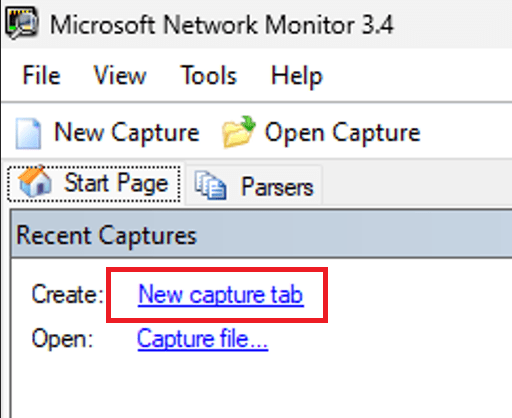
Click on New Capture Tab to open a new Capture.
At the display filter, copy and paste everything from D Column in Excel
In my case, it will be like this.
| or ContainsBin(FrameData, ASCII, “*.manage.microsoft.com”) |
| or ContainsBin(FrameData, ASCII, “manage.microsoft.com”) |
| or ContainsBin(FrameData, ASCII, “*.delivery.mp.microsoft.com”) |
| or ContainsBin(FrameData, ASCII, “*.prod.do.dsp.mp.microsoft.com”) |
| or ContainsBin(FrameData, ASCII, “*.update.microsoft.com”) |
| or ContainsBin(FrameData, ASCII, “*.windowsupdate.com”) |
| or ContainsBin(FrameData, ASCII, “emdl.ws.microsoft.com”) |
| or ContainsBin(FrameData, ASCII, “tsfe.trafficshaping.dsp.mp.microsoft.com”) |
| or ContainsBin(FrameData, ASCII, “time.windows.com”) |
| or ContainsBin(FrameData, ASCII, “www.msftconnecttest.com”) |
| or ContainsBin(FrameData, ASCII, “www.msftncsi.com”) |
| or ContainsBin(FrameData, ASCII, “*.s-microsoft.com”) |
| or ContainsBin(FrameData, ASCII, “clientconfig.passport.net”) |
| or ContainsBin(FrameData, ASCII, “windowsphone.com”) |
| or ContainsBin(FrameData, ASCII, “approdimedatahotfix.azureedge.net”) |
| or ContainsBin(FrameData, ASCII, “approdimedatapri.azureedge.net”) |
| or ContainsBin(FrameData, ASCII, “approdimedatasec.azureedge.net”) |
| or ContainsBin(FrameData, ASCII, “euprodimedatahotfix.azureedge.net”) |
| or ContainsBin(FrameData, ASCII, “euprodimedatapri.azureedge.net”) |
| or ContainsBin(FrameData, ASCII, “euprodimedatasec.azureedge.net”) |
| or ContainsBin(FrameData, ASCII, “naprodimedatahotfix.azureedge.net”) |
| or ContainsBin(FrameData, ASCII, “naprodimedatapri.azureedge.net”) |
| or ContainsBin(FrameData, ASCII, “naprodimedatasec.azureedge.net”) |
| or ContainsBin(FrameData, ASCII, “*.notify.windows.com”) |
| or ContainsBin(FrameData, ASCII, “*.wns.windows.com”) |
| or ContainsBin(FrameData, ASCII, “*.dl.delivery.mp.microsoft.com”) |
| or ContainsBin(FrameData, ASCII, “*.do.dsp.mp.microsoft.com”) |
| or ContainsBin(FrameData, ASCII, “*.emdl.ws.microsoft.com”) |
| or ContainsBin(FrameData, ASCII, “ekcert.spserv.microsoft.com”) |
| or ContainsBin(FrameData, ASCII, “ekop.intel.com”) |
| or ContainsBin(FrameData, ASCII, “ftpm.amd.com”) |
| or ContainsBin(FrameData, ASCII, “*.itunes.apple.com”) |
| or ContainsBin(FrameData, ASCII, “*.mzstatic.com”) |
| or ContainsBin(FrameData, ASCII, “*.phobos.apple.com”) |
| or ContainsBin(FrameData, ASCII, “5-courier.push.apple.com”) |
| or ContainsBin(FrameData, ASCII, “ax.itunes.apple.com.edgesuite.net”) |
| or ContainsBin(FrameData, ASCII, “itunes.apple.com”) |
| or ContainsBin(FrameData, ASCII, “ocsp.apple.com”) |
| or ContainsBin(FrameData, ASCII, “phobos.apple.com”) |
| or ContainsBin(FrameData, ASCII, “phobos.itunes-apple.com.akadns.net”) |
| or ContainsBin(FrameData, ASCII, “intunecdnpeasd.azureedge.net”) |
| or ContainsBin(FrameData, ASCII, “*.channelservices.microsoft.com”) |
| or ContainsBin(FrameData, ASCII, “*.go-mpulse.net”) |
| or ContainsBin(FrameData, ASCII, “*.infra.lync.com”) |
| or ContainsBin(FrameData, ASCII, “*.resources.lync.com”) |
| or ContainsBin(FrameData, ASCII, “*.support.services.microsoft.com”) |
| or ContainsBin(FrameData, ASCII, “*.trouter.skype.com”) |
| or ContainsBin(FrameData, ASCII, “*.vortex.data.microsoft.com”) |
| or ContainsBin(FrameData, ASCII, “edge.skype.com”) |
| or ContainsBin(FrameData, ASCII, “remoteassistanceprodacs.communication.azure.com”) |
| or ContainsBin(FrameData, ASCII, “lgmsapeweu.blob.core.windows.net”) |
Please note that the above URLs may change over time and thus I will recommend getting a new one if you are reading it after long time.
Please don’t forget to remove OR from first line.
So we have our Netmon with Filters Added.
Click on Apply

You are ready to launch now. All you need to do is, start Netmon and Reproduce the issue again.
Step#3: Reproducing the issue.
Open “Settings” from “Start Menu“. Navigate to “Accounts” settings, and then click on “Access work or School” option.
You will see something like this.
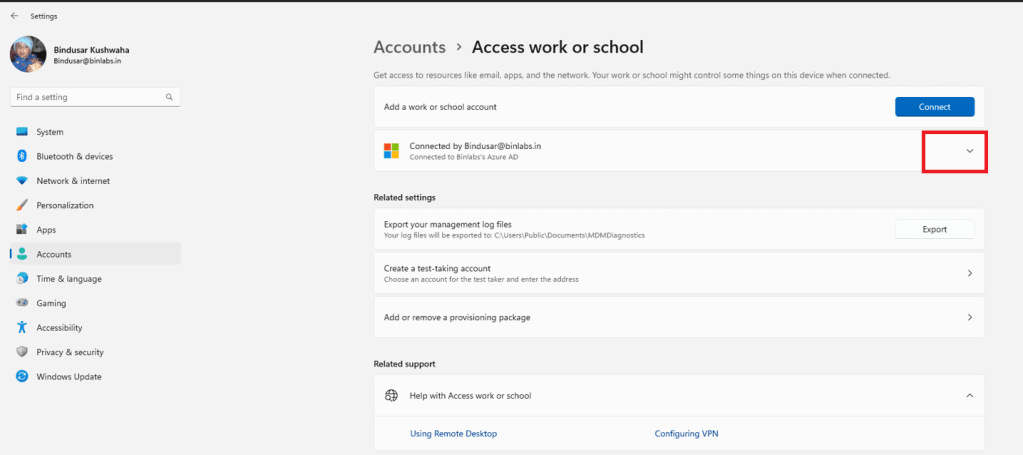
Expand the down arrow and click on Info.
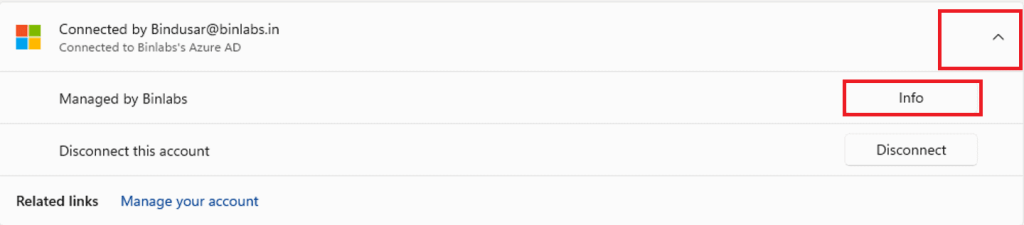
Look for “Sync” Button under “Device Sync Status“. Don’t click on it, hold your horses…
Remember Netmon? Switch to that Window and click on “Start” on the Top.
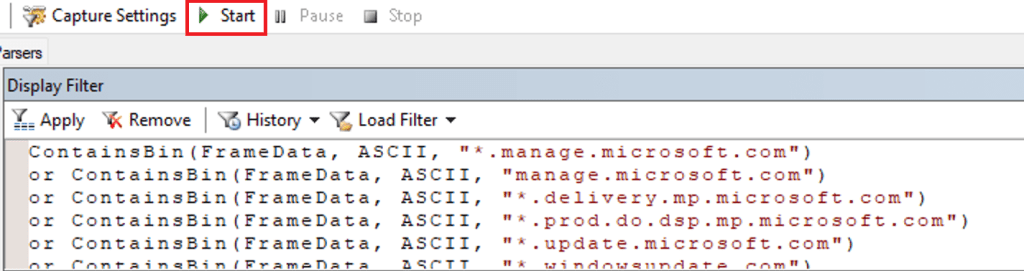
Done? Now, let’s go back to Sync Button and Trigger it.
Wait for Sync to complete.
Once done, Stop the trace immediately and “Save” it.
Step#4: Gathering evidence.
Now, if you look closely, you may find incomplete communication.
For example, in picture below, array609.prod.do.dsp.mp.microsoft.com tried to initiate “Hello” request but it did not get any response. So, server tried multiple times before giving up.

You may want to do a right click and find conversation with IPv4 to filter it further.

You can clearly see here, “3 Way Handshake” is Blocked at first step.
There can be other issues like ReTransmit as well.
You need to track the URLs from your filter and look at the conversation.
This is your proof with which you can go ahead and talk to your networking team.
Hope this helps!!!



Leave a Reply