In previous blog, we discussed about basic idea on how can we take backup of Intune Configurations using M365DSC PowerShell modules.
Steps to take Intune Backup. – (binlabs.in)
In this blog, we will walk you through following steps:
1. PowerShell Script Creator tool using M365DSC Portal
2. Azure Application Registration
3. Application Certificate
4. Required API permissions to take the backup
Lets take these steps one by one. We are planning to run this script on local machine.
Following portal can be used to generate PowerShell command.
Microsoft365DSC – Configuration-as-Code for the Cloud
All you need to do is identify:
1. Things you want to take backup.
2. Process to Authenticate yourself against Graph API
Here, in this example, I wanted to take backup of only “IntuneDeviceConfigurationAdministrativeTemplatePolicyWindows10”. So, I will open the Microsoft365DSC portal and navigate to Intune from left side. Select check box and hit Generate on top right corner.
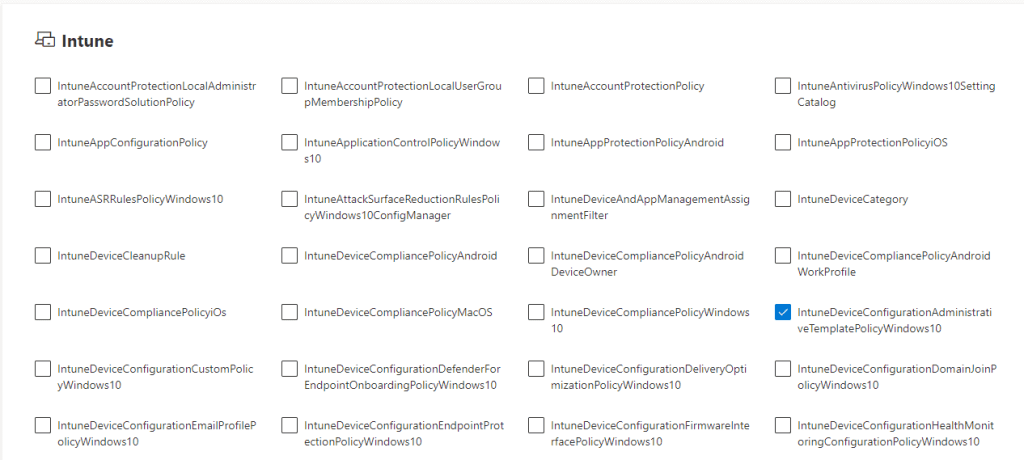
Once done, following script will be ready to copy.
# Getting application information for Application + Certificate authentication

$ApplicationId = Read-Host -Prompt 'Application Id'

$CertificateThumbprint = Read-Host -Prompt 'Certificate Thumbprint'

$TenantId = Read-Host -Prompt 'Tenant Id'


# Exporting resources using certificate

Export-M365DSCConfiguration -Components @("IntuneDeviceConfigurationAdministrativeTemplatePolicyWindows10") -ApplicationId $ApplicationId -CertificateThumbprint $CertificateThumbprint -TenantId $TenantId
Please note that we need to first install and module and update the dependencies. Also, ensure that script execution is not restricted.
Set-ExecutionPolicy Unrestricted
Install-Module Microsoft365DSC
Update-M365DSCDependencies

Update-M365DSCModule
It will install following modules and dependencies.
Installing DSCParser version {1.4.0.1}

Installing ExchangeOnlineManagement version {3.4.0}

Installing Microsoft.Graph.Applications version {2.12.0}

Installing Microsoft.Graph.Beta.DeviceManagement version {2.12.0}

Installing Microsoft.Graph.Beta.Devices.CorporateManagement version {2.12.0}

Installing Microsoft.Graph.Beta.DeviceManagement.Administration version {2.12.0}

Installing Microsoft.Graph.Beta.DeviceManagement.Enrollment version {2.12.0}

Installing Microsoft.Graph.Beta.Identity.DirectoryManagement version {2.12.0}

Installing Microsoft.Graph.Beta.Identity.Governance version {2.12.0}

Installing Microsoft.Graph.Beta.Identity.SignIns version {2.12.0}

Installing Microsoft.Graph.Beta.Reports version {2.12.0}

Installing Microsoft.Graph.Beta.Teams version {2.12.0}

Installing Microsoft.Graph.DeviceManagement.Administration version {2.12.0}

Installing Microsoft.Graph.Beta.DirectoryObjects version {2.12.0}

Installing Microsoft.Graph.Groups version {2.12.0}

Installing Microsoft.Graph.Planner version {2.12.0}

Installing Microsoft.Graph.Users version {2.12.0}

Installing Microsoft.Graph.Users.Actions version {2.12.0}

Installing Microsoft.PowerApps.Administration.PowerShell version {2.0.178}

Installing MicrosoftTeams version {5.9.0}

Installing MSCloudLoginAssistant version {1.1.7}

Installing PnP.PowerShell version {1.12.0}

Installing ReverseDSC version {2.0.0.18}
Next step is to create an App registration in Microsoft Entra using following doc.
Register a client application in Microsoft Entra ID for the Azure Health Data Services | Microsoft Learn
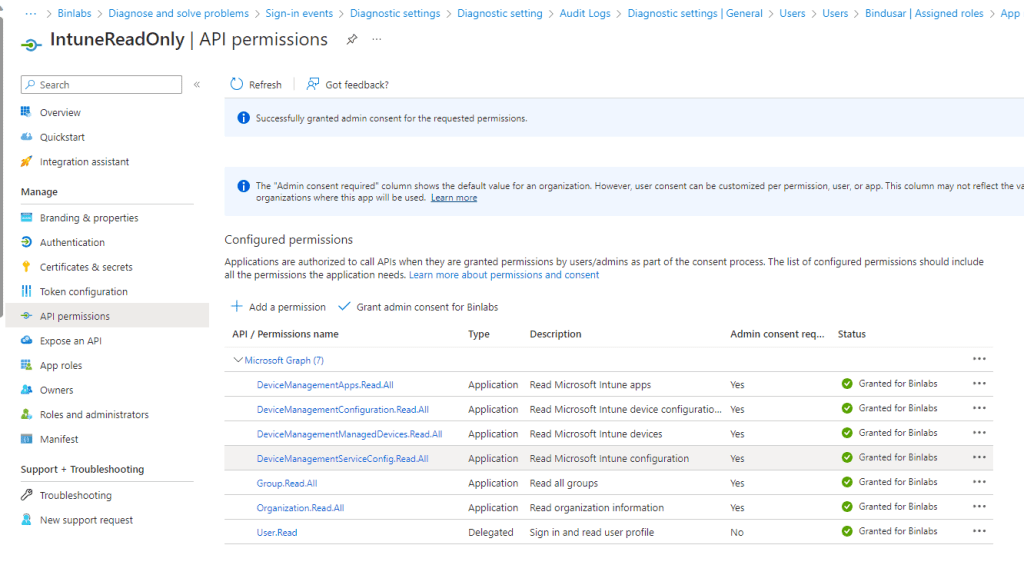
Once done, add following API permissions and Grant admin consent.
Now, under Certificate and Secrets, select Certificate and upload a client auth certificate from your machine where script will be running.
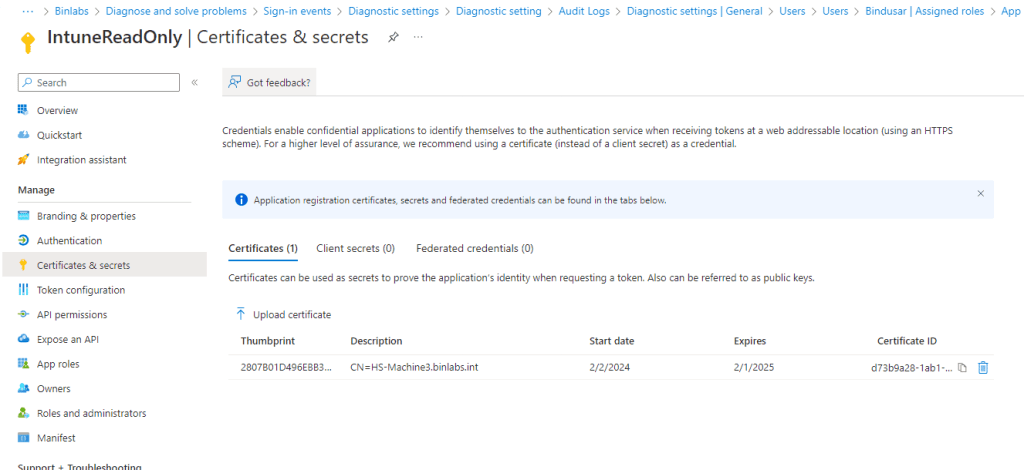
Once done, we are good to run the script. During execution, it will be prompting for application ID and Thumbprint of certificate we uploaded. Application ID will can be found under overview section of application and thumbprint will be under certificates and secrets section. TenantID here is referring to domain name. In my case, it will be Binlabs.in. I am also using -Path parameter as well to store the backup at desired location.
Its time to execute the script mentioned above for which out will look like this.

At the backup folder, we now have 2 files in it.
1. Configuration Date
2. M365TenantConfig
Keep these files save so that you can restore it when needed.
In next blog, we will talk about how to restore this backup in Intune.
Hope this helps.



Leave a Reply